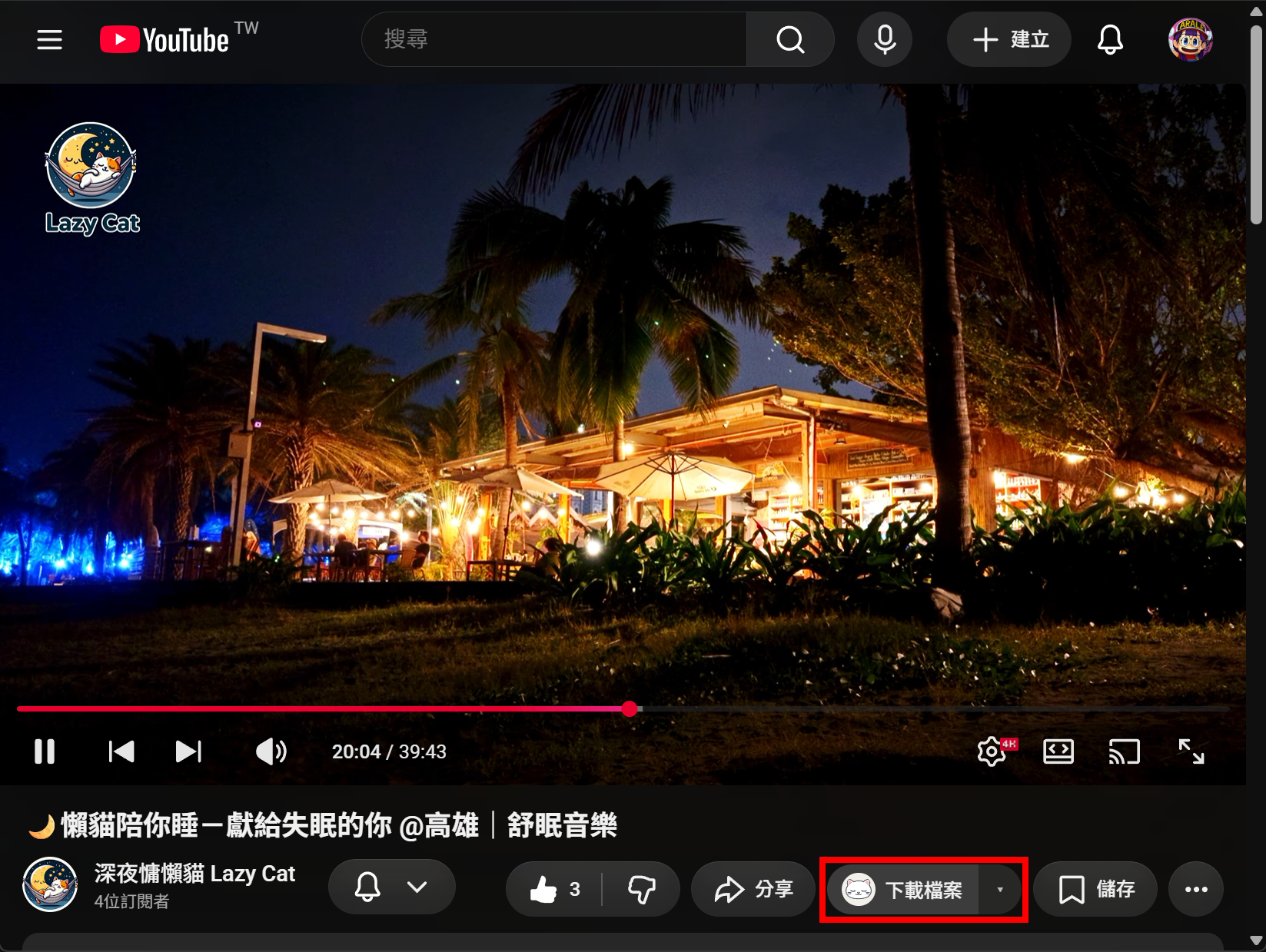
Want to keep a YouTube video or audio track that you have permission to save? Lazycat YouTube Downloader adds a download button with a cat icon to the video page, so you can choose a format and save it directly to your computer.
Choose the right download
Choose your operating system, then the browser you normally use for YouTube. These are version 0.1.33. Each ZIP includes an illustrated, five-step installation guide named 安裝說明.html. Open it after extracting the ZIP. The supplied application interface and installation guide are in Traditional Chinese; an English application build is not included. The English steps below help you identify the controls.
Windows 10 / 11 (64-bit)
- Download for Chrome
- Download for Edge
- Download for Brave
- Download for Firefox — test version (reload the extension each time you restart Firefox)
Ubuntu (64-bit)
- Download for Chrome (not Chromium)
- Download for Edge
- Download for Brave
- Download for Firefox — test version (reload the extension each time you restart Firefox)
On Ubuntu, use a native browser installation. Snap and Flatpak browser packages are not supported. These downloads are for 64-bit x86 computers; there is no ARM build.
Install with the five-step illustrated guide
- Extract and run: extract the entire ZIP and open
安裝說明.html. On Windows, run安裝.cmd; on Ubuntu, runbash 安裝-Ubuntu.shfrom the extracted folder. Choose Yes at the Windows User Account Control prompt, or enter your own Ubuntu login password when prompted in the terminal. - Wait for installation: the first run may download components. Stay connected to the internet and allow a few minutes for the completion message.
- Open your browser’s extension settings: follow the screenshots to the extension-loading page for your browser.
- Copy the path and load the extension: refresh the installation guide when setup finishes. Copy the extension-folder path shown there and select that folder as illustrated.
- Start downloading: open a YouTube video and use the added download button to choose MP4 video, M4A audio or MP3 audio, then select where to save it.
The installation guide includes its images and styles, so you can read it offline and enlarge the pictures. If you have an older version, download the new package for the same operating system and browser, extract it, and follow its guide.
The packages include the media conversion tools. Optional weekly automatic updating is available, but is turned off by default.
Before you use it
- Firefox loads the extension temporarily; load it again after closing or restarting the browser.
- YouTube or browser updates may change available formats or how the tool behaves.
- Only download material you own, have permission to save, or are permitted to save under applicable law and the service’s terms.
Third-party components and source code
The packages include FFmpeg and its license information. Windows uses a Gyan build; Ubuntu uses a BtbN build. Corresponding snapshots of the FFmpeg main-program source are available here: Windows source and Ubuntu source. See also FFmpeg’s license information.